
Fortnite keybinds in 2026: Best PC Layouts for Building, Editing, and Winning More Fights
Choosing the right Fortnite keybinds is not about copying one pro player and hoping it works. This guide helps PC keyboard-and-mouse players build a faster, more comfortable setup for building, editing, weapon swaps, movement, and long sessions in the 2026 Fortnite meta.
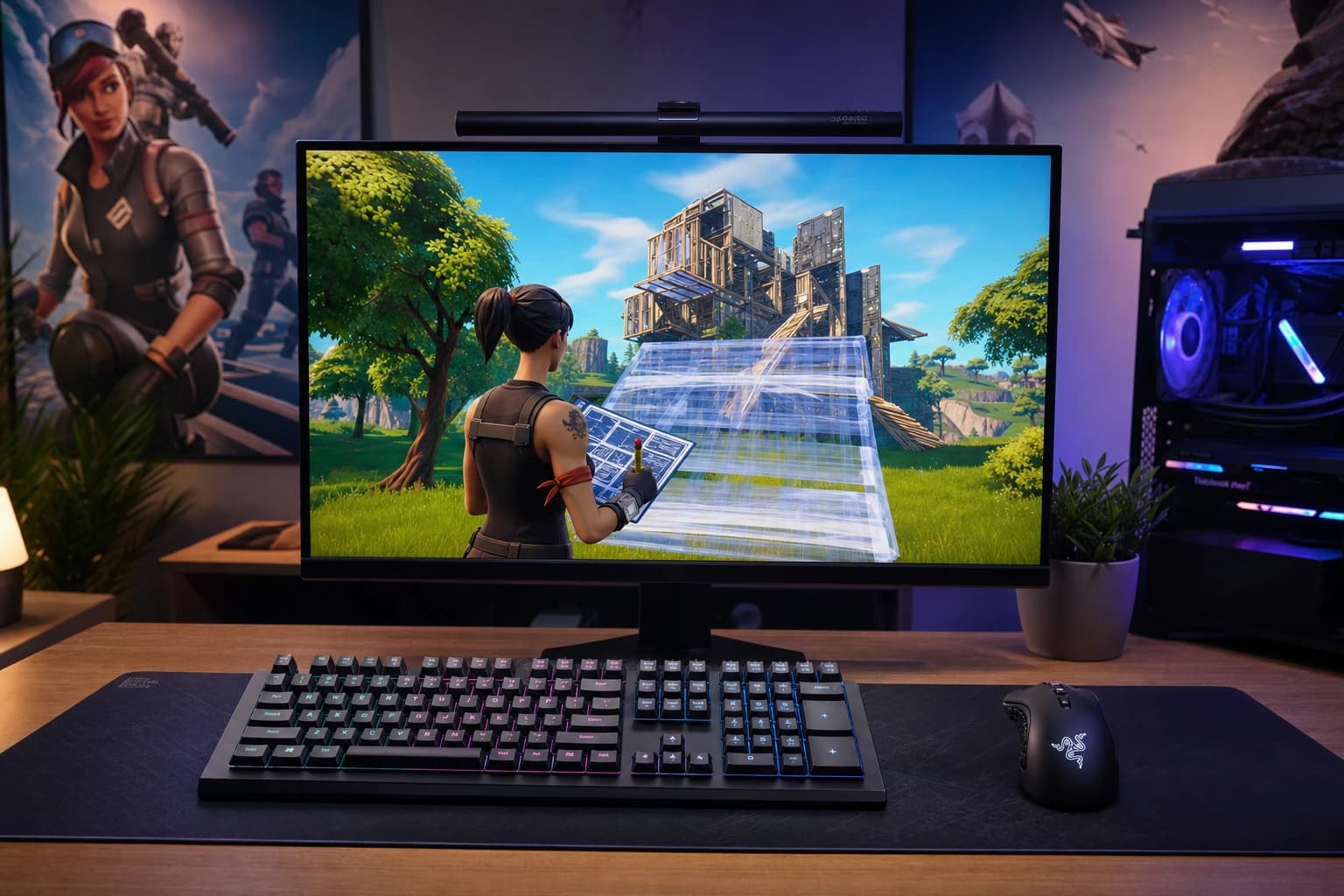
Choosing the right Fortnite keybinds is not about copying one pro player and hoping it works. This guide helps PC keyboard-and-mouse players build a faster, more comfortable setup for building, editing, weapon swaps, movement, and long sessions in the 2026 Fortnite meta.
The best Fortnite keybinds are not the ones with the most famous name attached. They are the ones that let you move, build, edit, swap weapons, ping, and reset without fighting your own keyboard. In 2026, PC players need a setup that keeps up with fast piece control, aggressive box fights, quick peeks, and longer Ranked sessions without turning every fight into finger gymnastics.
This guide is built for keyboard-and-mouse players who want a practical layout, not a random list of pro settings. You will get recommended Fortnite keybinds for PC, beginner through advanced layouts, scroll wheel reset guidance, mouse button options, training drills, and comfort checks. Use it as a starting point, then tune it to your hand size, gear, and playstyle.
Why Fortnite keybinds matter more than copying pro settings
Good Fortnite keybinds reduce finger travel. That sounds simple, but it changes a lot in real fights. If your wall, ramp, floor, cone, edit, shotgun, and reset are all reachable while your movement stays stable, you can react faster when someone jumps into your box or when you need to claim a wall before the other player.
Pro settings are useful references because they show patterns that work at high level. Still, copying one pro player exactly can feel terrible if your keyboard is different, your mouse has fewer side buttons, or your fingers do not reach the same keys comfortably. The better move is to understand why a layout works, then build your own version.
The goal: faster actions with less hand strain
An optimal Fortnite layout keeps your core actions close. Movement should stay on WASD unless you have a strong reason to change it. Building pieces should be split across easy keyboard keys and mouse buttons. Edit should be fast enough for repeated use, and weapon slots should be predictable so you never panic-scroll past your shotgun.
The layout should also feel good after more than one match. If your pinky is overloaded with sprint, crouch, edit, and build actions, you may play well for ten minutes and then lose consistency. Fortnite keybinds should help your mechanics, not punish your hands.
What changed for 2026 Fortnite PC players
The 2026 Fortnite PC meta rewards fast edits, clean resets, reliable weapon swapping, and movement that does not collapse under pressure. Whether you are playing Battle Royale, Zero Build, Creative, Ranked, or practice maps, the pace is high. Build players especially need binds that support wall takes, cone placement, protected ramps, and quick right-hand peeks.
That does not mean every player needs a hyper-competitive setup. A smart layout for casual squads can still use the same principles: lower input friction, less stretching, and enough consistency to make your next fight feel less scrambled.
Best Fortnite keybinds for PC in 2026: quick recommendation
If you want one balanced setup to test first, use the layout below. These Fortnite keybinds are designed for most PC keyboard-and-mouse players with a standard mouse that has two side buttons. If you have only one side button or none, the next sections explain how to adapt it.
- Movement: W, A, S, D
- Jump: Spacebar
- Sprint: Left Shift
- Crouch or slide: Left Ctrl or C, depending on pinky comfort
- Interact or use: E
- Reload: R
- Inventory: Tab
- Map: M
- Ping or place marker: Middle Mouse Button or T
- Weapon slots: 1 for pickaxe, 2 for shotgun, 3 for SMG or spray weapon, 4 for AR, 5 for utility or heals, X or Z for the final slot if 6 feels too far
- Wall: Mouse Button 4
- Ramp: Mouse Button 5
- Floor: Q
- Cone: V or C
- Edit: F
- Reset building edit: Mouse Wheel Down
- Confirm edit: Confirm Edit on Release enabled, with left click to select tiles
- Place building: Left Mouse Button
- Rotate building: R or G
- Repair or upgrade: H or another low-priority key
This is not the only strong setup, but it gives you a clean logic. The thumb and mouse handle high-frequency building actions, the index finger gets edit and interact, and the number row still handles weapon slots. If one key feels awkward after focused practice, swap it. Do not rebuild the whole layout after one bad box fight.
Recommended movement and combat binds
Most players should keep WASD movement because it is stable, familiar, and supported by years of muscle memory. Spacebar for jump is also the standard for a reason. Left Shift usually works well for sprint, while crouch on Left Ctrl is common but can be rough for some hands. If Left Ctrl feels tight, C can be a better crouch key.
For weapons, the main question is whether you can hit 1 through 5 cleanly without losing movement. Many players put shotgun on 2 or 3 because those keys are easier to hit than 5. The key is consistency. Your shotgun slot should never move between matches, and your heals or utility should live in a predictable slot.
Recommended building binds
The best building Fortnite keybinds keep your most urgent pieces close. Wall and ramp are usually the highest priority because they protect you and let you take space. If your mouse has two side buttons, wall on Mouse Button 4 and ramp on Mouse Button 5 is a strong starting point. Floor on Q and cone on V or C keeps the keyboard side compact.
If you prefer floor on a mouse button, move ramp or wall to Q or E and test it in free build. There is no single rule that wins every fight. What matters is that you can press wall, ramp, floor, cone, and edit without fully releasing movement.
Recommended edit bind and reset setup
F is one of the most popular edit bind options because it is close to WASD and easy for the index finger. E, G, and a mouse side button can also work. If E is your interact key, moving edit to F avoids conflicts. If F feels crowded, try G for a few sessions before judging.
For most PC players, Confirm Edit on Release is worth testing because it reduces the number of inputs needed to complete an edit. Pairing it with scroll wheel reset can make defensive resets feel much faster. These Fortnite keybinds help most when your select, confirm, and reset actions do not fight each other.
Beginner vs intermediate vs advanced Fortnite keybinds
A new player and a tournament grinder should not always use the same setup. Beginner Fortnite keybinds should be easy to remember. Intermediate binds should reduce travel time. Advanced binds should support piece control and fast edits, even if they feel strange during the first week.
Beginner-friendly layout for easier muscle memory
- Wall: Q
- Ramp: E or Mouse Button 5
- Floor: C
- Cone: V
- Edit: F
- Weapons: 1 to 5
- Crouch: Left Ctrl or C if C is not used for floor
- Reset: Right click or scroll wheel after you understand basic editing
This layout keeps the logic simple. The downside is that Q and E can compete with movement fingers, especially during diagonal movement. Beginners can still learn quickly with this setup, then move one or two building pieces to mouse buttons later.
Intermediate layout for faster building and editing
- Wall: Mouse Button 4
- Ramp: Mouse Button 5
- Floor: Q
- Cone: V
- Edit: F
- Shotgun: 2 or 3
- Utility: 5 or X
- Ping: Middle Mouse Button or T
- Reset: Mouse Wheel Down
This is the sweet spot for many players. It spreads actions across both hands and keeps edit close. If you play with friends who push aggressively, this layout makes it easier to box up, counter-edit, and swap back to your shotgun without thinking too hard.
Advanced competitive layout for piece control
- Wall: Mouse Button 4
- Ramp: Q or Mouse Button 5
- Floor: Mouse Button 5 or C
- Cone: V or Left Shift if sprint is moved
- Edit: F, E, or a mouse button
- Crouch: C or Left Ctrl
- Shotgun: 2
- AR or SMG: 3 and 4
- Utility: X, Z, or 5
- Reset: Mouse Wheel Down or Mouse Wheel Up
Advanced Fortnite keybinds often feel worse before they feel better. That is normal. If you move three major binds at once, your mechanics may look cooked for a few days. Give the setup structured practice before taking it into serious Ranked games.
How to adapt Fortnite keybinds to your hands, keyboard, and mouse
Personal fit is the part many guides skip. Your best Fortnite keybinds depend on hand size, finger reach, keyboard format, mouse shape, grip style, and how often you build compared with Zero Build. A global pro database can show common choices, but it cannot feel your hands during a three-hour session.
Hand size and finger reach
Test reach before committing. While holding W, try hitting 5, 6, T, Y, B, N, and Left Ctrl. If you have to twist your hand or release movement, that key is not ideal for a high-frequency action. Smaller hands often do better with Q, E, F, C, V, X, Z, and mouse buttons.
Larger hands may handle the number row more comfortably, but comfort still wins. If you miss a bind in real fights, that bind is expensive. Move important actions closer and push rare actions like repair, emote, or map farther away.
Full-size, TKL, compact, and laptop keyboards
A full-size keyboard gives you extra keys, but most Fortnite actions happen on the left side anyway. TKL boards feel similar for gameplay. Compact 60 percent boards can be great for mouse space, but they may change access to function keys, arrow keys, or dedicated utility keys. Laptop keyboards can have flatter keys and less separation, so avoid binds that require precise far reaches.
Should you use mouse buttons for building in Fortnite?
Yes, mouse buttons are often excellent for building in Fortnite, especially for wall and ramp. They free up keyboard fingers so you can keep movement stable while placing pieces. The tradeoff is grip control. If pressing a side button makes your aim shaky, do not force every build onto the mouse.
With two side buttons, try wall and ramp first. With one side button, put wall there and keep ramp or floor on Q. With no side buttons, use nearby keyboard keys like Q, E, F, C, V, and X, and make sure edit does not clash with your most important build piece.
Scroll wheel reset in Fortnite: is it still worth using?
Scroll wheel reset is still worth using for many keyboard-and-mouse players. It lets you reset an edited build very quickly by binding the mouse wheel to edit and reset building edit. In box fights, that can help you close a window, reset a wall, and avoid free damage.
Best scroll wheel reset setup
A common setup is Mouse Wheel Down for both secondary edit and reset building edit. Some players use Mouse Wheel Up instead because it fits their grip better. Keep your main edit bind on F, E, G, or a mouse button, then use the wheel for fast resets rather than every edit action.
Do not expect scroll wheel reset to fix weak timing by itself. It is a tool. It works best when your Fortnite keybinds already allow clean wall control, edit selection, and weapon swaps.
When scroll wheel reset can feel awkward
Scroll wheel reset can feel awkward if your mouse wheel is too loose, your grip is tense, or you accidentally trigger it during weapon swaps. Some players prefer a separate reset and confirm bind for more deliberate control. If the wheel causes mistakes after several practice sessions, a standard reset bind may be better for you.
What do pro players use?
Pro players use a wide range of , but the patterns are more useful than the exact names. Many competitive players use mouse buttons for at least one or two building pieces, a nearby edit key, separate weapon slot binds, and scroll wheel reset. Their setups are usually built around years of muscle memory.
Common patterns in pro Fortnite settings
- High-frequency builds are placed on easy keys or mouse side buttons.
- Edit is usually close to WASD, often F, E, G, or a mouse button.
- Shotgun has a dedicated key that is easy to hit under pressure.
- Scroll wheel reset is common among PC players who build heavily.
- Low-priority actions are moved away from prime keyboard space.
Why you should not copy pro keybinds blindly
A pro layout may be built around a specific mouse, keyboard angle, hand size, or years of habits that would slow you down. You can learn from pro Fortnite settings without becoming a settings clone. Change one or two binds, test them in Creative, then decide with calm reps instead of one tilted match.
The right layout is the one that lets you react without thinking and play longer without discomfort.
— COYA gaming team
How to change your keybinds in Fortnite
Changing is simple, but changing too many at once can break your rhythm. Before you start, screenshot your current Keyboard Controls page or write down your main binds. That gives you a rollback plan if the new setup feels wrong.
Step-by-step path in the settings menu
- Open Fortnite on PC.
- Click your profile icon or open the main menu.
- Go to Settings.
- Select Keyboard Controls.
- Find the action you want to change, such as Wall, Edit, Slot 2, or Reset Building Edit.
- Click the current key, press the new key or mouse button, and confirm it.
- Check for conflicts and remove duplicate binds if needed.
- Apply the changes.
- Test the layout in Creative, free build, or a low-pressure mode before queuing Ranked.
How to avoid breaking your setup
Change in batches. For example, move wall and ramp to mouse buttons first, then keep everything else the same for a few sessions. After that, adjust edit or weapon slots. If you change building, editing, crouch, sprint, and weapons all at once, it becomes hard to know what is actually helping.
Training drills to build muscle memory after changing binds
New need reps before they feel natural. Do not judge them only by your first real match. Your brain is still searching for old inputs, so you need a short routine that makes the new layout automatic.
10-minute daily keybind warmup
- Minute 1: Move around while jumping, crouching, sprinting, and interacting.
- Minutes 2 to 3: Cycle wall, ramp, floor, cone in different orders.
- Minutes 4 to 5: Practice simple edits, window edits, door edits, and resets.
- Minutes 6 to 7: Swap from shotgun to SMG or AR after every edit.
- Minutes 8 to 9: Build a box, edit out, reset, then re-box from another angle.
- Minute 10: Add aim transitions after edits, then finish with relaxed free build.
Building and editing drills for new binds
Use free build patterns first: 90s, protected ramps, double edits, cone edits, and tunnel edits. Then move into box fight or piece control drills where you replace a wall, place a cone, edit a peek, shoot, and reset. The goal is not flashy clips. The goal is to press the right bind without thinking.
If you play with a squad, ask them to run low-pressure 1v1s or box fights while you adapt. That is also where a teammate-matching platform like COYA can help, because practicing with players who match your vibe is easier than solo grinding in silence.
How long it takes to get used to new
Minor changes may feel normal after two to five sessions. Major changes, like moving multiple building pieces and edit at the same time, can take one to three weeks of consistent practice. If a bind still causes missed inputs after focused reps, adjust it. If it only feels weird, give it more time.
Ergonomics, comfort, and accessibility for long Fortnite sessions
Comfort is not a bonus feature. It is part of performance. Bad can make you stretch awkwardly, overload one finger, or tense your wrist during fights. That can lead to inconsistent inputs and, for some players, hand or wrist discomfort.
Signs your keybinds are causing strain
- You feel pain, tingling, or sharp discomfort while playing.
- Your hand twists when reaching important keys.
- You regularly miss movement keys while building.
- Your pinky feels overloaded by sprint, crouch, and other actions.
- Your mouse grip becomes tense when pressing side buttons.
- Your mechanics get worse quickly during longer sessions.
If you feel pain, take breaks and adjust your setup. This is gaming, not a hand endurance test. A better chair position, keyboard angle, mouse grip, and bind layout can all help make long sessions smoother.
Comfort-first keybind adjustments
Move high-frequency actions to easier keys. Use mouse buttons wisely, but do not stack every important bind on your thumb if it hurts your aim. Reduce pinky overload by moving crouch to C or sprint to a more comfortable key if needed. The best are the ones you can repeat cleanly while staying relaxed.
Final checklist before you queue
Before you lock in your setup, run a quick checklist. Can you move while placing wall, ramp, floor, and cone? Can you edit and reset without staring at your keyboard? Can you swap to shotgun after an edit every time? Can you ping, reload, crouch, and interact without conflicts?
- Prioritize movement freedom over fancy binds.
- Keep building binds close and easy to repeat.
- Use a comfortable edit bind such as F, E, G, or a mouse button.
- Test scroll wheel reset, but keep it only if it feels reliable.
- Avoid changing too many in one session.
- Practice in Creative before taking the layout into Ranked.
- Review comfort after long sessions, not only after one fight.
Your setup should make the game feel more direct. When your match your hands and your playstyle, building feels less chaotic, edits become more confident, and team fights are easier to read. After that, the next upgrade is playing with people who communicate, push at your pace, and actually fit your vibe.
Find your next squad
Join COYA and start playing together: https://www.coya.gg/