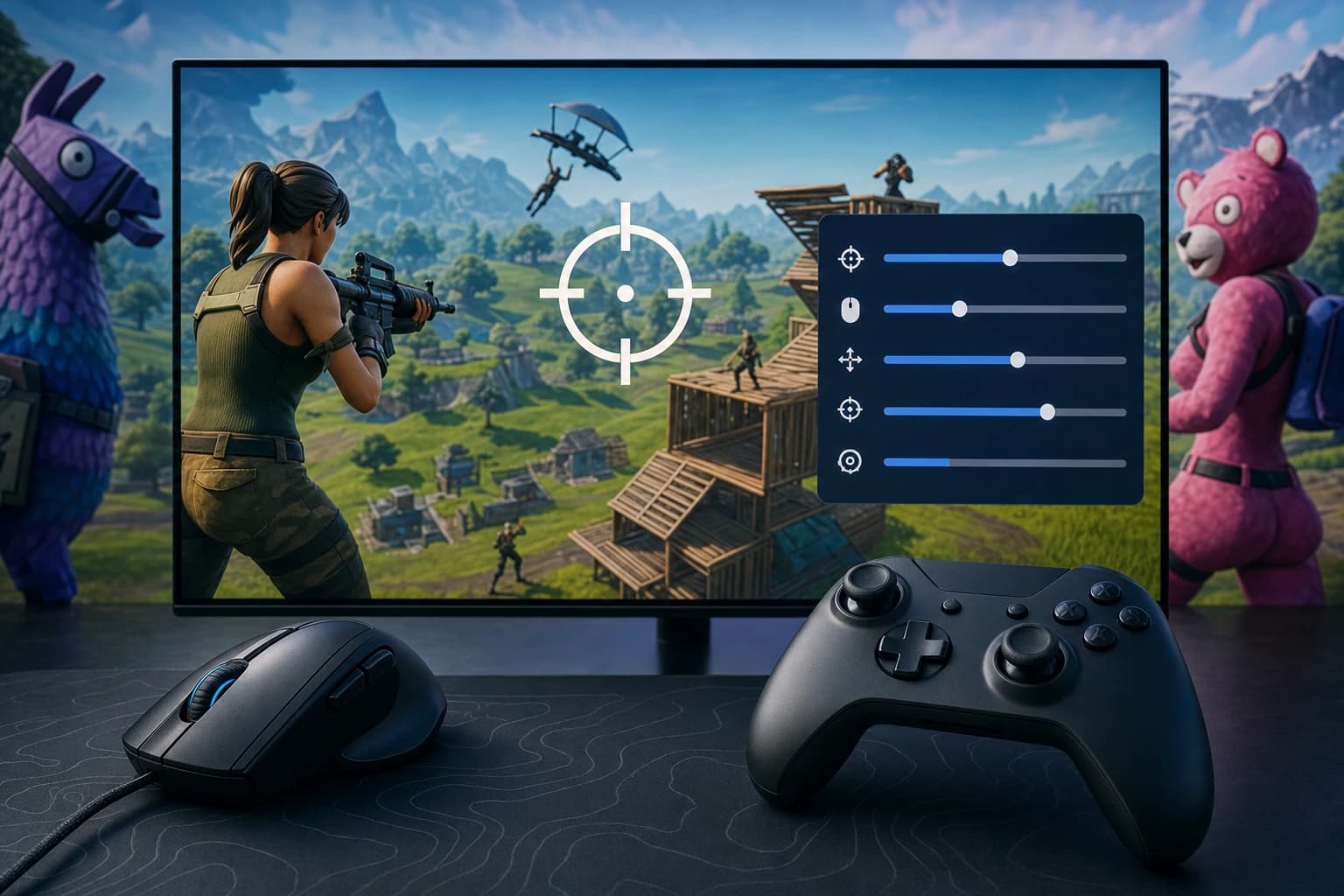

Fortnite graphics settings in 2026: FPS, Visibility, and Smooth Gameplay Setup
The right Fortnite graphics settings can make builds, edits, aim fights, and endgame rotations feel much smoother across PC and console.
The right Fortnite graphics settings can make builds, edits, aim fights, and endgame rotations feel much smoother across PC and console.
Good Fortnite graphics settings are not just about making the island look clean. They affect how fast your inputs feel, how clearly you track players through builds, how stable your endgame FPS stays, and how quickly you can react in box fights. In 2026, Fortnite still has a huge mix of players on low-end laptops, 144Hz mid-range PCs, high-end 240Hz rigs, PS5, Xbox Series X, older consoles, and Switch, so one universal setup does not fit everyone.
This guide gives you practical Fortnite graphics settings for competitive FPS, balanced visuals, PC hardware tiers, consoles, benchmarking, and stutter fixes. Use it as a starting loadout, then test in your own lobbies. A setting that feels perfect in Creative can still drop frames in a stacked ranked endgame, so the best setup is the one that stays smooth when the fight gets messy.
Best Fortnite graphics settings for 2026 at a glance
If you want the fast version, start with these Fortnite graphics settings and adjust only after testing. For most competitive players, the goal is stable FPS, low input latency, and clear enemy visibility rather than maxing every visual feature.
- Display Mode: Fullscreen on PC for the most consistent latency.
- Resolution: Native monitor resolution, usually 1920x1080, 2560x1440, or console output resolution.
- Frame Rate Limit: Match your display or cap slightly above it if stable, such as 144, 165, 240, or 360 FPS.
- Rendering Mode: Performance Mode for maximum FPS, DirectX 12 for stronger modern PCs, DirectX 11 as a stability fallback.
- View Distance: Medium or Far for competitive play, Epic only if your system stays stable.
- Shadows: Off for visibility and FPS.
- Textures: Low on limited VRAM, Medium or High if you have 6GB to 8GB plus VRAM and no stutters.
- Effects: Low, because explosions, particles, and impact effects can hit FPS in fights.
- Post Processing: Low for cleaner visibility and lower GPU load.
- Motion Blur: Off.
- V-Sync: Off for lower input latency unless tearing is unbearable.
- NVIDIA Reflex: On plus Boost if available and temperatures are under control.
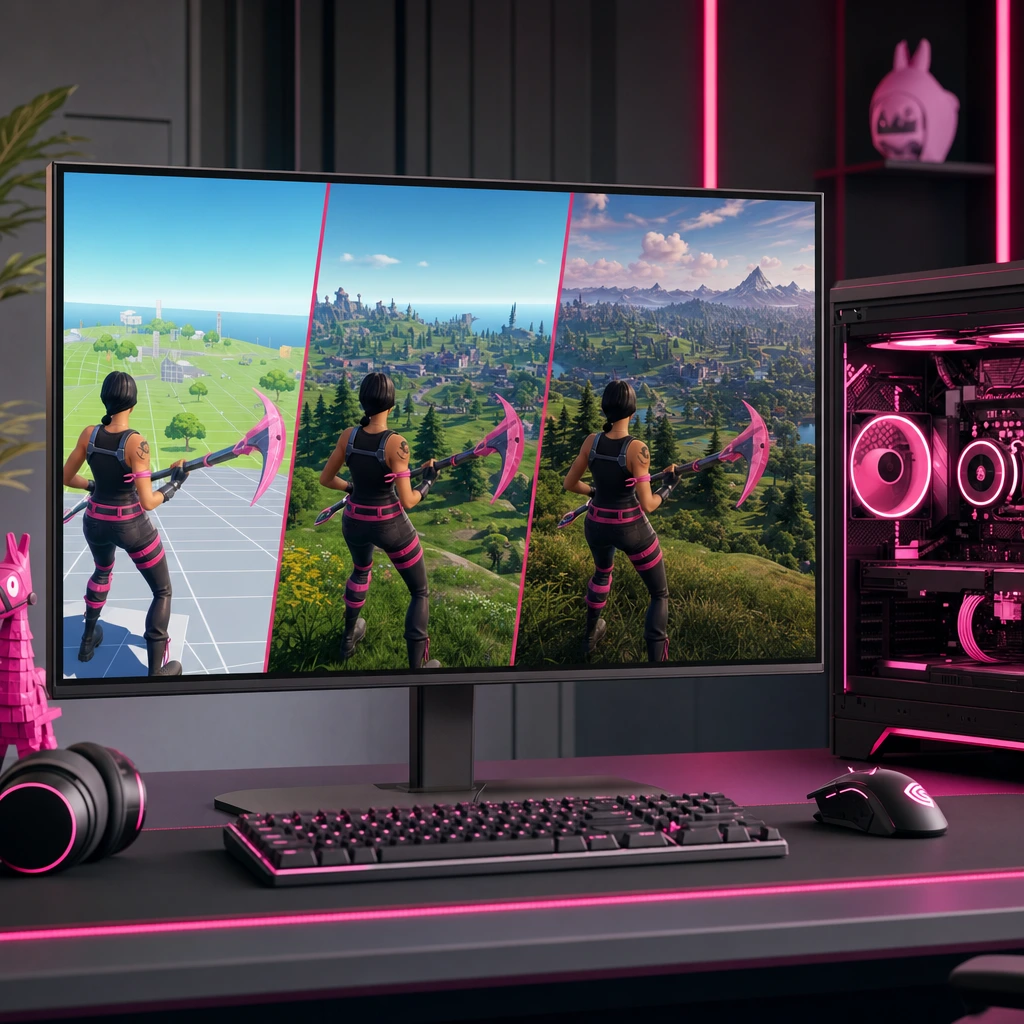
Quick competitive preset for higher FPS and clearer fights
For ranked, tournaments, Zero Build, and Battle Royale fights, use these Fortnite graphics settings: Fullscreen, native resolution, Performance Mode, View Distance Medium or Far, Shadows Off, Textures Low or Medium, Effects Low, Post Processing Low, Motion Blur Off, V-Sync Off, and Reflex On if your GPU supports it. Keep your frame cap stable instead of chasing an unstable peak. A locked 160 FPS on a 165Hz monitor often feels better than bouncing between 120 and 240 during every rotate.
Quick balanced preset for players who still want Fortnite to look good
If you want Fortnite to look better without losing the sauce in fights, try DirectX 12, native resolution, View Distance Far, Textures Medium or High, Effects Low or Medium, Post Processing Low, Shadows Off or Low, and Nanite and Lumen disabled unless your GPU has plenty of headroom. These Fortnite graphics settings keep the game readable while making skins, terrain, and POIs look less flat.
What each graphics setting actually changes
Copying a preset is useful, but understanding the trade-offs helps you fix problems faster. Fortnite graphics settings usually pull on four things: FPS, input latency, visual clarity, and visual quality. When a setting adds fancy lighting or extra effects, it may look better in screenshots but feel worse when you are tunneling, editing, or tracking someone sliding across your screen.
Rendering mode: Performance Mode vs DirectX 11 vs DirectX 12
Performance Mode is built for higher FPS and lower visual load, which is why many competitive players use it. It reduces visual complexity and can help low-end PCs stay playable. DirectX 12 can be smoother on newer GPUs after shaders are cached, especially with enough RAM and VRAM, but it can stutter after major updates. DirectX 11 is the safe fallback when the other modes crash, hitch, or feel weird on your system.
Resolution, 3D resolution, and resolution scaling
Resolution controls how many pixels your system renders. Native resolution gives the cleanest image, which helps with long-range spotting. Lowering 3D resolution can raise FPS, but it makes enemies, builds, and loot less sharp. If your PC is struggling, drop 3D resolution in small steps like 100% to 90% or 85%, then check if tracking still feels clear. Do not instantly drop to potato mode unless your system needs it.
View distance, shadows, textures, effects, and post processing
View Distance affects how far certain world details appear, but it does not magically reveal every player through terrain. Medium or Far is enough for most players. Shadows are expensive and can make fights visually darker, so turn them off for competitive play. Textures depend heavily on VRAM. If your card has enough memory, higher textures can look better without a huge FPS loss. Effects and Post Processing are more likely to hurt clarity during explosions, sprays, rifts, and chaotic third-party fights.
Nanite, Lumen, and UE5 visuals
Nanite Virtualized Geometry and Lumen lighting are part of Fortnite's Unreal Engine 5 visual package. They can make buildings, terrain, and lighting look impressive, especially on high-end PCs and current-gen consoles. The trade-off is GPU load. If you are tuning Fortnite graphics settings for ranked consistency, disable them first. If you mainly play casual squads and your FPS stays stable, you can experiment with them.
Motion blur, V-Sync, and input latency
Motion blur should be off. It makes fast camera movement less clear, which is exactly what you do during edits, flicks, shockwave rotates, and shotgun swaps. V-Sync can reduce screen tearing, but it may add input delay. If tearing bothers you, first try a stable FPS cap, your monitor's adaptive sync features if available, or display settings before enabling V-Sync in a competitive setup.
Best Fortnite graphics settings by PC hardware tier
Your PC tier matters more than any influencer preset. The best Fortnite graphics settings for an older laptop are not the same as the best setup for a 1440p 240Hz rig. Here is how to think by hardware level.
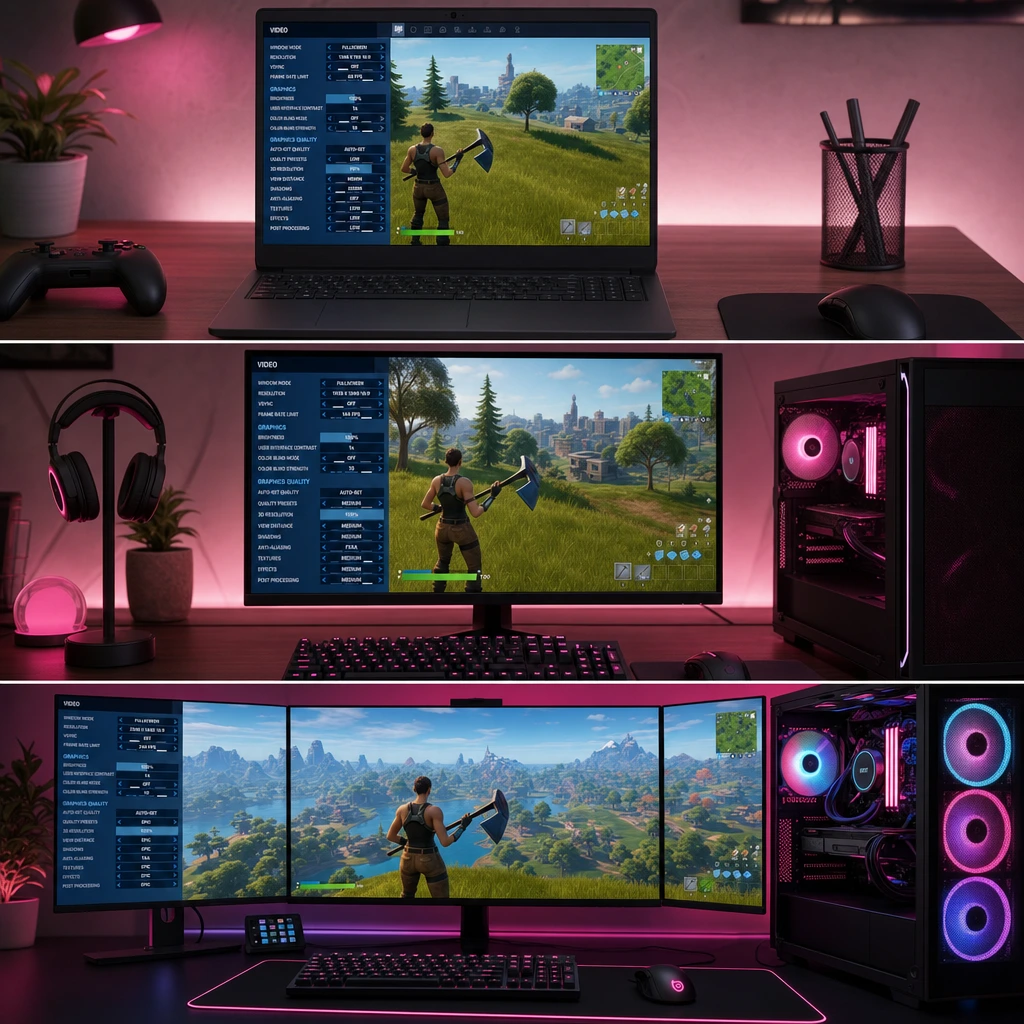
Low-end laptop or older desktop settings
On integrated graphics, older GTX cards, or budget laptops, start with Performance Mode, 1920x1080 if possible, 3D Resolution 80% to 100%, View Distance Medium, Shadows Off, Textures Low, Effects Low, and Post Processing Low. Cap FPS to something your machine can actually hold, such as 60, 90, or 120. Close browsers, launchers, recording tools, and heavy overlays before playing. If your laptop gets hot and FPS drops after ten minutes, you may be thermal throttling, not using bad Fortnite graphics settings.
Mid-range GPU settings for 1080p and 144Hz
For common global setups like GTX 1660, RTX 2060, RTX 3060, RX 6600, or similar cards, target stable 144 FPS at 1080p. Use Performance Mode if you play competitive, or DirectX 12 if it feels smoother after a few matches. Keep Shadows Off, Effects Low, Post Processing Low, View Distance Far, and Textures Medium or High if VRAM allows. These Fortnite graphics settings usually give a strong mix of clean visuals and low delay.
High-end PC settings for 1440p, 240Hz, or 360Hz
High-end players with cards like RTX 4070, RTX 4080, RTX 4090, RX 7900 XT, or newer equivalents should still prioritize frame consistency. At 1440p, 240Hz, or 360Hz, a clean low-latency setup beats cinematic visuals in stacked lobbies. Use NVIDIA Reflex On or On plus Boost, cap FPS near what your monitor can display, and test DirectX 12 versus Performance Mode. If your average FPS is high but 1% lows collapse in endgame, lower Effects, Post Processing, Nanite, Lumen, and shadows before blaming aim.
When to raise textures and when to keep them low
Textures are mostly a VRAM question. If your GPU has 4GB VRAM or less, Low is safer. With 6GB to 8GB, Medium is a reasonable default. With 10GB or more, High can look better without hurting FPS much, as long as you do not see stutters. Textures rarely give a competitive advantage, so raise them only after your core Fortnite graphics settings are already stable.
Best Fortnite graphics settings for console
Console players have fewer sliders, but they still have important choices. The best Fortnite graphics settings on console depend on display refresh rate, console output settings, motion blur, and whether your TV or monitor adds delay.
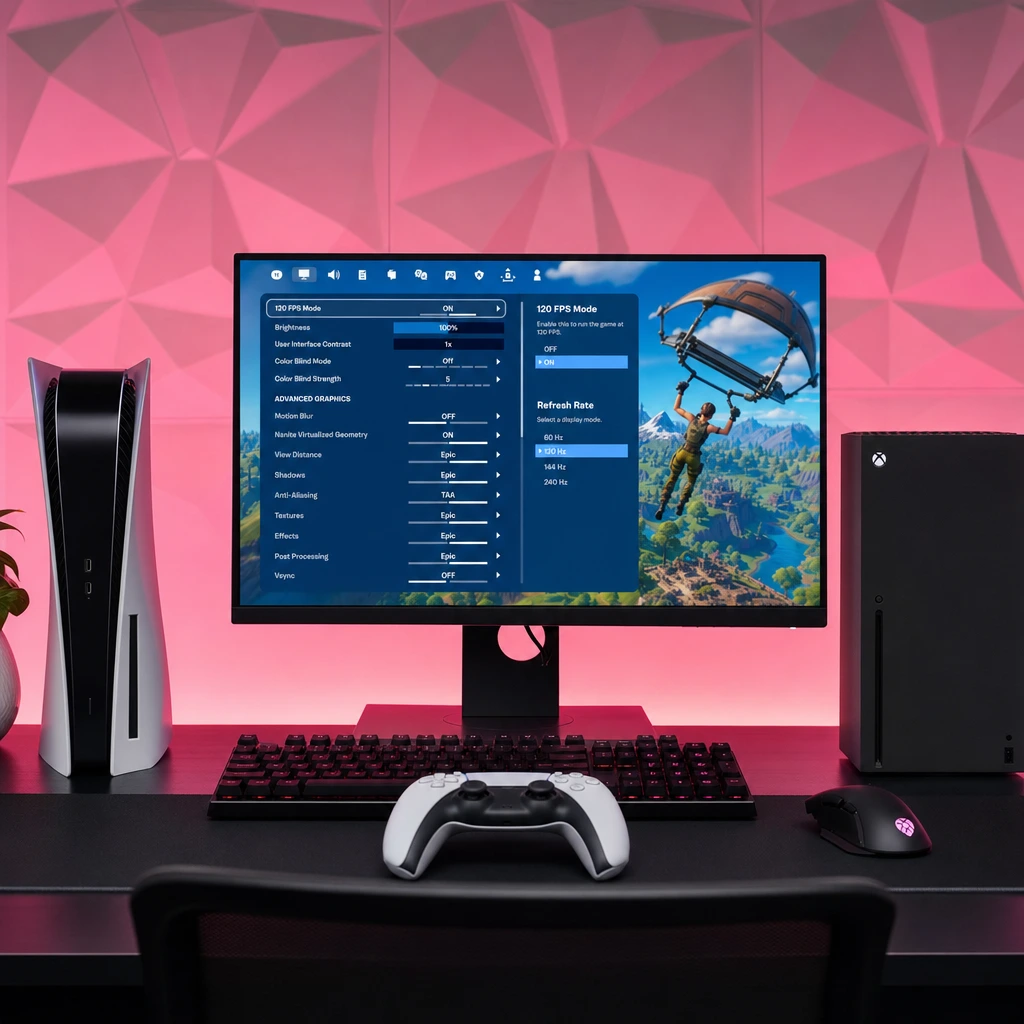
PS5 and Xbox Series X settings for 120 FPS mode
On PS5 and Xbox Series X, 120 FPS mode can make aiming, editing, and camera movement feel much more responsive. You need a 120Hz display, the right HDMI connection, and console display settings set to allow 120Hz output. In Fortnite, enable 120 FPS mode if available, turn Motion Blur Off, and use Game Mode on your TV or monitor. If the option does not appear, check your console video settings before reinstalling the game.
Xbox Series S, PS4, Xbox One, and Nintendo Switch expectations
Xbox Series S can still feel solid with the right display setup, but it has less headroom than Series X. PS4, Xbox One, and Nintendo Switch are more limited, so focus on stability instead of chasing PC-style settings. Turn off Motion Blur when possible, keep your console well-ventilated, avoid recording or streaming from the same device if performance drops, and understand that some frame dips are hardware limits, not fixable .
TV and monitor settings that affect input delay
Your display can add more delay than many players realize. Enable Game Mode, disable motion smoothing, reduce unnecessary image processing, and confirm the refresh rate is actually set to 120Hz when using 120 FPS mode. HDR can look good, but if it adds delay or makes dark areas harder to read, turn it off for ranked sessions. A responsive monitor can make edits and close-range aim feel faster even when stay the same.
How to get more FPS in Fortnite without making the game unplayable
For a real Fortnite FPS boost, change the highest-impact options first. Random tweaks can waste time and make the game ugly without solving the actual bottleneck.
The biggest FPS wins to try first
- Switch to Performance Mode if your PC is weak or you need maximum competitive FPS.
- Turn Shadows Off, then lower Effects and Post Processing to Low.
- Disable Nanite and Lumen when FPS matters more than UE5 visuals.
- Use a sensible frame cap instead of Unlimited if your FPS swings hard.
- Lower 3D Resolution only after the major settings are already low.
- Close background apps, overlays, browsers, and recording tools.
- Update GPU drivers and restart after big Fortnite updates.
Frame rate cap: unlimited or fixed?
Unlimited FPS can feel great if your system is strong and consistent, but unstable FPS can create uneven frame pacing. For 60Hz screens, cap at 60 or 120 if stable. For 120Hz, use 120. For 144Hz, use 144 or 160 if stable. For 165Hz, use 165 or 180. For 240Hz, use 240, and for 360Hz, use 360 only if your PC can hold it in real fights. Stable usually beat a flashy FPS number in the lobby.
Visibility settings for cleaner enemy tracking
For visibility, turn off Motion Blur, Shadows, and heavy Post Processing. Keep View Distance at Medium or Far, and avoid lowering 3D Resolution so far that players become blurry at range. Competitive players often prefer cleaner visuals because builds, movement, and hitbox tracking are easier to read. The island may look less cinematic, but your shotgun fights can feel more honest.
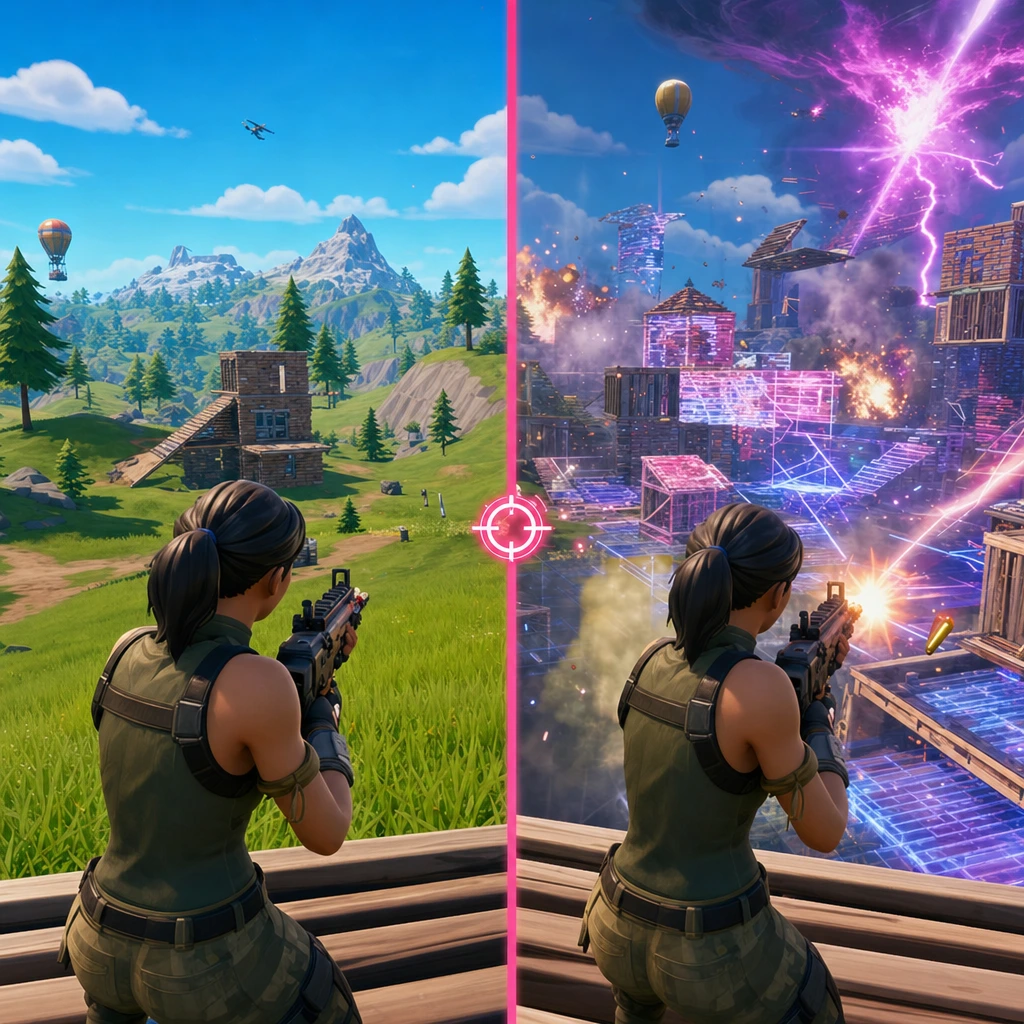
Performance Mode vs DirectX 12: which should you use?
This is one of the biggest questions because both options can be correct. Your answer depends on hardware, drivers, shader cache, and whether you value pure FPS or visual quality.
Choose Performance Mode if you need the highest FPS
Performance Mode is the safest pick for low-end systems, high-refresh competitive play, and players who want fewer visual distractions. It can make the game look simpler, but that is part of the appeal for many ranked grinders. If your main goal is smoother builds and lower latency, start here.
Choose DirectX 12 if you have a stronger modern PC
DirectX 12 can run very well on modern CPUs and GPUs, especially after you have played enough for shaders to compile. It may give smoother frame pacing on some newer systems and lets you use more visual features. If you see stutters after a new season or driver update, play a few matches, test again, and compare 1% lows rather than only average FPS.
Choose DirectX 11 if stability matters more than features
DirectX 11 is not the exciting option, but it can be useful. If Performance Mode has visual bugs or DirectX 12 keeps hitching, DirectX 11 may feel more predictable. Think of it as your backup plan when other combinations do not behave.
How to benchmark your
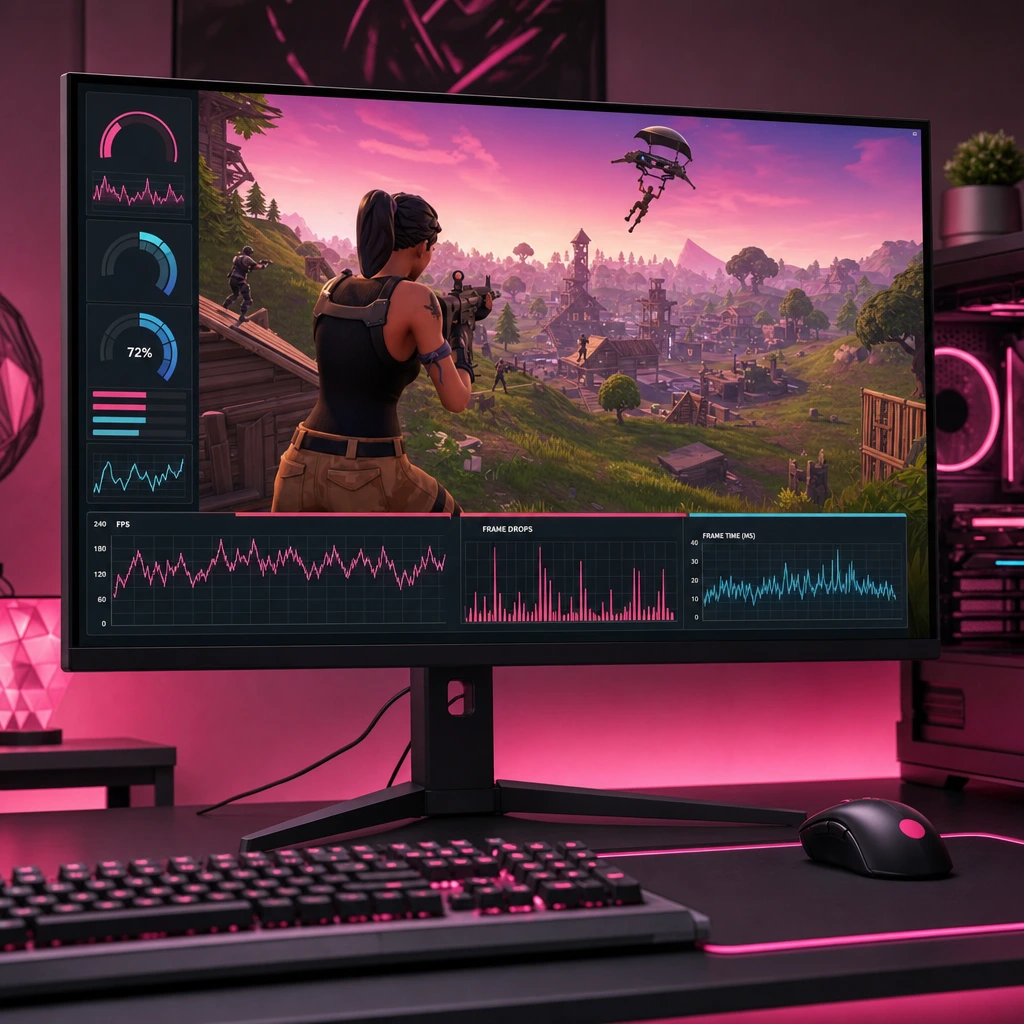
Do not judge settings from one lobby spawn or one quiet Creative freebuild. Benchmarking means testing the same kind of situation more than once, then comparing smoothness, not just peak FPS.
Use the same landing spot, replay, or Creative map for testing
Pick a repeatable test. Use the same POI route, a replay with similar camera movement, or a Creative map with building, editing, and fighting pressure. Test for at least a few minutes after changing settings. A single drop from the Battle Bus is not enough data.
Track average FPS, 1% lows, stutters, and input feel
Average FPS is useful, but 1% lows and frame pacing explain why a game can feel choppy even when the counter looks high. Watch for hitching during fast turns, shotgun swaps, edits, and crowded fights. If your aim feels delayed, your issue may be latency or frame pacing rather than raw FPS.
Find your bottleneck: CPU, GPU, RAM, thermals, or network
If GPU usage is near max, lower visual settings first. If CPU usage spikes while GPU usage stays lower, big fights and background apps may be the issue. If temperatures are high, your PC or laptop may throttle. If RAM is full, close apps or consider an upgrade. If ping or packet loss spikes, that is network lag, not a problem.
Why Fortnite is lagging, stuttering, or dropping frames
Lag is a word players use for everything, but there are different problems. FPS drops come from hardware or settings. Stutters can come from shaders, drivers, storage, or background tasks. Rubber-banding usually points to network issues.
Stutters after updates and shader compilation
After a new Fortnite season, major patch, or GPU driver update, DirectX 12 systems can stutter while shaders compile. This often improves after playing several matches, but it can feel rough at first. If the problem stays for days, test Performance Mode or DirectX 11.
Driver settings, game files, and background apps
Keep GPU drivers updated, especially after Fortnite engine changes. Verify game files through the Epic Games Launcher if crashes or weird performance appear. Close heavy overlays, browsers with video tabs, screen recorders, and unnecessary launchers. On Windows laptops, use a high-performance power mode when plugged in.
Thermals, RAM, storage, and network latency
Overheating can slowly reduce FPS after a few matches. Low RAM can cause hitching when the system swaps data. Running Fortnite from an SSD is usually smoother than an old hard drive. High ping, Wi-Fi drops, and packet loss can make fights feel broken even if your are perfect.
What Fortnite settings do pro players use?
Most pro players use low visual settings, high refresh rate monitors, stable FPS caps, Motion Blur Off, and visibility-first choices. That does not mean every pro uses the exact same . Their setup depends on hardware, monitor, tournament rules, comfort, and how they like the game to feel.
Why copying a pro setup is only a starting point
A pro with a 360Hz monitor and a top-tier PC can use settings that make no sense on your laptop or console. Copy the logic, not just the list. Start low, test stability, then raise only the settings that do not hurt your fights.
The shared logic behind competitive settings
The common competitive logic is simple: see clearly, reduce distractions, lower input delay, and keep frames stable when everyone is boxing, spraying, and rotating at once. Your should help you make faster decisions, not show off reflections while you are getting edited on.
Final checklist: your best setup
Before queuing ranked, Creative, or a squad session, run this checklist: use Fullscreen on PC, choose the right rendering mode, turn Motion Blur Off, disable Shadows for competitive play, keep Effects and Post Processing Low, set a stable frame cap, test View Distance Medium or Far, and benchmark in real fight conditions. If the game still stutters, check drivers, thermals, RAM, storage, and network before changing random sliders.
Before you queue: test, save, and squad up
Once your feel smooth, save them and stop over-tweaking every match. Better frames help, but Fortnite is still a team game. If your duo never comms, your trio pushes the wrong side, or your squad vibes are off, settings can only carry so much. COYA helps match you with compatible gamers by games, platforms, rank, age, and playstyle, then puts you in a live room so you can play together instantly.
Your next squad is waiting Join COYA and start playing together